


Blog
HOW TO SET UP A YEALINK IP PHONE FOR YOUR OFFICE
Every modern business needs a solid communication system. If you've got a small office, a growing business or a large call center, you'll know what a good phone system can do to improve customer service and help your staff work more efficiently. Yealink IP Phones are a good choice because they provide excellent sound quality, a range of useful features, and are well suited to the modern VoIP world. However, you must configure the device correctly to get the best performance. This guide will help you through setting up a Yealink IP Phone for your office, configuring the network and SIP settings, and reviewing some common issues you may encounter.
Understand Your Yealink IP Phone Requirements
Before you start, make sure you have everything you need: a Yealink IP phone, an Ethernet cable, a reliable internet connection and access to your office network. You may also need a PoE network switch or a power adapter for the phone.
Make sure you have the SIP account details from your VoIP provider (these enable your phone to connect to your business phone system). Having everything arranged in advance will make setup smoother and reduce the risk of errors.
- Yealink IP phone (T-series or another compatible model).
- Ethernet cable for network connectivity.
- Power adapter or Power over Ethernet (PoE) switch.
- Active internet or office network connection.
- SIP account credentials from your VoIP provider.
- IP phone system or hosted PBX service.
Connect Your Yealink IP Phone to the Network
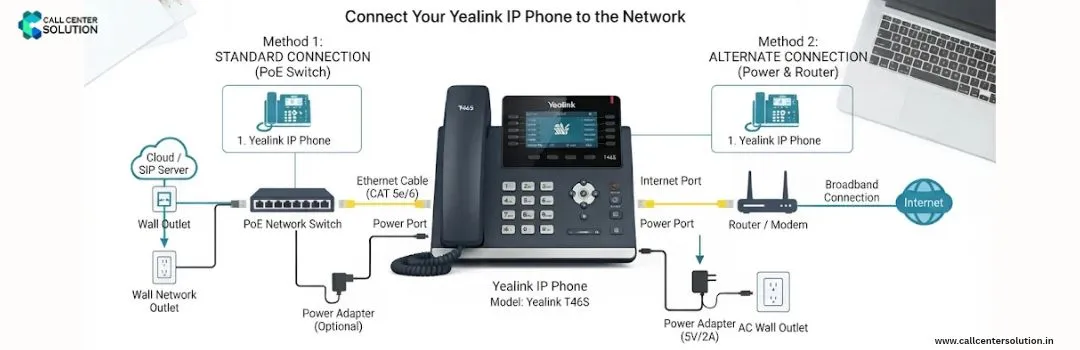
Connect your phone to the office network. Plug one end of an Ethernet cable into the LAN port on your Yealink phone. Plug the other end into your router network switch or PoE switch.
If you have Power over Ethernet, your phone will get both power and network via the same cable. Otherwise use the power adapter that came with your phone.
Once you've connected everything, switch on the phone and let it power up. Most Yealink phones use DHCP so if your network is configured to do so, they'll get an IP address automatically.
Access the Yealink Web Management Interface
Once you've connected the device, open its web management interface to set it up. The first thing you'll need to do is find the phone's IP address in the network status or settings menu.
On a computer on the same network, open a browser and type the phone's IP address into the address bar. You'll then be presented with the login page. Log in with your admin credentials, and you'll be able to access the admin panel.
To access it:
- Find the phone's IP address by navigating to its network status or settings menu.
- Open a web browser on a computer connected to the same network.
- Enter the phone's IP address into the browser's address bar.
- Log in using the administrator credentials configured for your device.
Test Your Yealink IP Phone
Before you go and actually put the phones in the office, just do a few simple tests first.
Try making an outgoing call to ensure the phone connects. Then have someone call your extension to check that you can receive calls.
Check the mic, speaker volume, handset sound and that you can transfer calls.
If your phone has HD voice, check that the voice is clear and there are no drops in the audio.
Testing can now help you to identify any setup issues prior to everyone starting to use the phones on a daily basis.
Check the mic, speaker and handset all work OK and that calls are clear. If your device has HD voice then check that the calls actually sound natural.
Testing these features early will help to pick up any problems and ensure that the staff can actually use the phones.
Troubleshoot Common Yealink IP Phone Issues
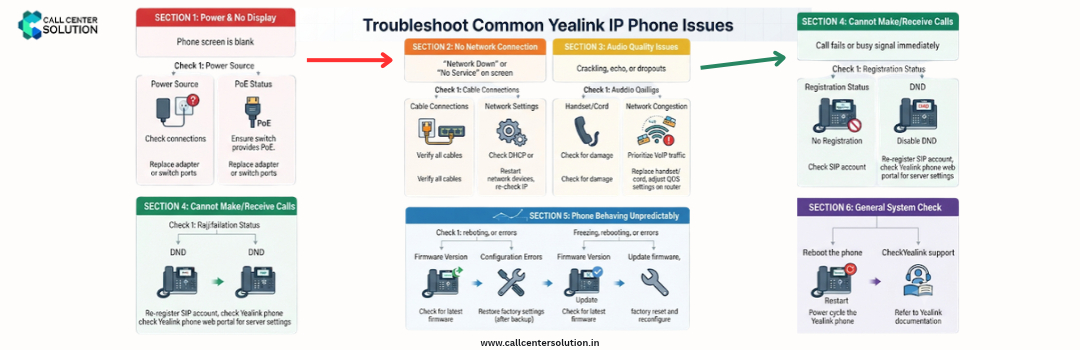
Sometimes, your Yealink IP phone may not work correctly after installation. Here are some common problems and their possible solutions.
Phone Not Registering:
Check your SIP username, password, and server address. Confirm that your VoIP provider has activated the extension.No Network Connection:
Inspect the Ethernet cable, router, and network switch. Verify that DHCP is enabled if your network uses automatic IP assignment.Poor Voice Quality:
Check your internet bandwidth, network congestion, and Quality of Service (QoS) settings.No Incoming Calls:
Verify call forwarding settings, extension status, and firewall configuration.If the problem continues, contact your VoIP provider or IT administrator for assistance.
For persistent problems, contact your VoIP provider or IT administrator to identify and resolve the issue.
Choose the Right IP Phone System with Callcentersolution.in
Setting up your Yealink device is just one piece of the jigsaw when it comes to creating an efficient business communications system. Equally important is choosing the right IP phone system to manage your calls and support your business as it grows.
Callcentersolution.in helps businesses find the right communication solution to support office calls, customer service and call center operations.
When selecting a common solution, consider scalability, call management, security, extension management and integration with your Yealink devices. The right solution will enable your team to manage calls effectively and provide a better experience for your customers.
Conclusion
You can set up a Yealink IP phone in the office pretty easily. Just connect it to the network, open the web interface, enter your SIP details and test the calling functions.
When your Yealink is properly set up and paired with a reliable IP phone system, your business communications can improve. This will lead to better work for your staff and clearer calls. With the right equipment and the proper support from Callcentersolution.in your office can have a solid communication setup.

Latest Blog Posts
How to Set Up a Yealink IP Phone for Your Office
Every modern business needs a solid communication system. If you've got a small office, a growing bu

What Does an IVR Service Provider Cost in 2026?
A good IVR solution will help a business with customer communication, help them to manage calls and

What are Cloud Telephony Services?
Cloud telephony services allow businesses to manage their calls online rather than just having a tra